
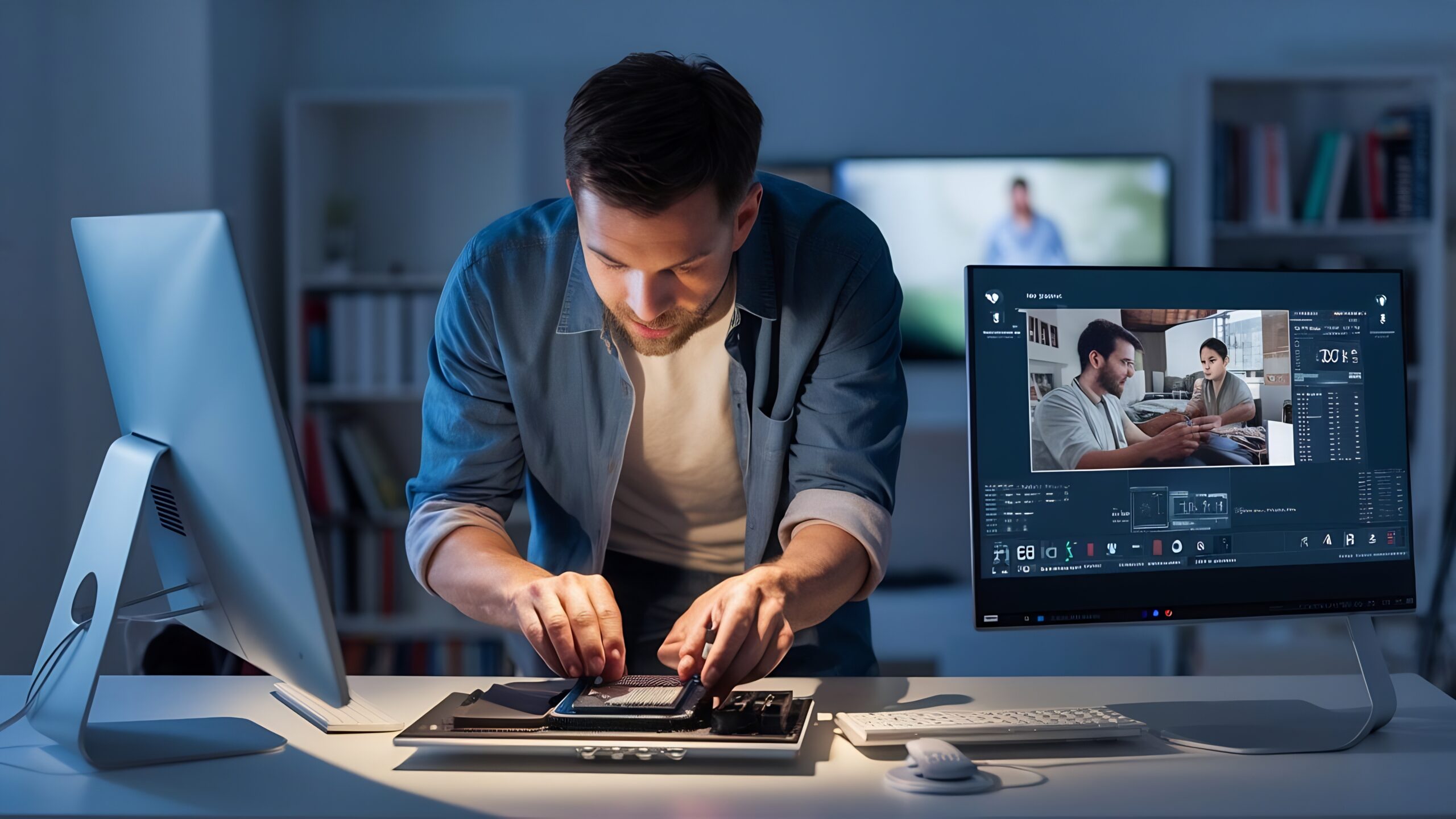
Choosing the right laptop can feel confusing—especially if you are planning to enroll in a video editing course. As a student between 18–24 years old (or a parent investing in your child’s future), you don’t want to overspend. But you also don’t want a slow system that crashes during project submission week.
Video editing is a creative field—but it is also hardware-intensive. The right laptop ensures smooth editing, faster rendering, and a stress-free learning experience. In this guide, we will break down the minimum laptop requirements for a video editing course, explain why each component matters, and help you make a smart, future-proof decision.
Let’s get started.
Why Laptop Requirements Matter for a Video Editing Course
Modern editing software like:
- Adobe Premiere Pro
- DaVinci Resolve
- Final Cut Pro
- After Effects
Demands strong processing power, enough RAM, and good storage.
According to official system recommendations from Adobe and Blackmagic Design (makers of DaVinci Resolve), video editing performance depends mainly on:
- CPU performance
- GPU acceleration
- RAM capacity
- SSD speed
If your laptop doesn’t meet the minimum specs, you may face:
- Lag while scrubbing timeline
- Crashes during rendering
- Long export times
- Overheating issues
That’s why choosing the right configuration before you start a video editing course after 12th is extremely important.
Minimum Laptop Requirements for Video Editing Students (2026 Standard)
Here’s a practical, student-friendly breakdown.
1. Processor (CPU) – The Brain of Your Laptop
Minimum Requirement:
- Intel Core i5 (10th Gen or higher)
OR - AMD Ryzen 5 (4000 series or higher)
Recommended for Better Performance:
- Intel Core i7 / Ryzen 7 (if budget allows)
Why it matters:
The CPU handles timeline playback, effects processing, and exporting videos. More cores = faster rendering.
For beginners in a video editing course, a modern i5 or Ryzen 5 is enough for:
- 1080p editing
- Basic color grading
- YouTube content creation
2. RAM – For Smooth Multitasking
Minimum Requirement:
- 8GB RAM (Bare Minimum)
Recommended:
- 16GB RAM (Best for students)
Editing software uses a lot of memory. If you run:
- Premiere Pro
- Background music
- Chrome with tutorials
- Photoshop
8GB can struggle.
16GB ensures smooth performance and a better learning experience during your video editing course.
3. Graphics Card (GPU) – Important for Effects & Rendering
Minimum Requirement:
- 4GB Dedicated GPU (NVIDIA GTX 1650 or equivalent)
Recommended:
- NVIDIA RTX 3050 or higher
Modern editing software uses GPU acceleration. Without a dedicated graphics card:
- Playback becomes choppy
- Rendering takes longer
- Effects lag heavily
Students aiming for serious growth and better career scope after a video editing course should prioritize a dedicated GPU.
4. Storage – SSD is Non-Negotiable
Minimum Requirement:
- 512GB SSD
Avoid HDD-only laptops.
Why SSD?
- Faster boot time
- Faster file transfer
- Faster export
Video files are large. A 10-minute 4K project can easily take 20–40GB. You may also need:
- External 1TB HDD/SSD for backup
Tip: Always keep at least 20% storage free for better performance.
5. Display – Don’t Ignore Screen Quality
Minimum:
- 15.6-inch Full HD (1920×1080)
- IPS Panel preferred
Color accuracy matters in video editing. A cheap TN panel may show incorrect colors.
Students learning color grading in a video editing course should look for:
- 100% sRGB (if possible)
- Anti-glare screen
6. Battery & Cooling System
Editing drains battery fast. Even high-end laptops may last 3–5 hours during editing.
Important features:
- Good ventilation
- Dual-fan cooling
- Metal body preferred
Overheating can slow down performance (thermal throttling).
Minimum vs Recommended Configuration (Quick Comparison Table)
| Component | Minimum | Recommended |
| CPU | i5 / Ryzen 5 | i7 / Ryzen 7 |
| RAM | 8GB | 16GB |
| GPU | 4GB Dedicated | RTX 3050+ |
| Storage | 512GB SSD | 1TB SSD |
| Display | Full HD | IPS, 100% sRGB |
If your budget is limited, start with minimum specs and upgrade RAM later (if upgradeable).
Can You Start a Video Editing Course After 12th with a Budget Laptop?
Yes, absolutely.
Many students who start a video editing course after 12th begin with mid-range laptops.
If your budget is between ₹55,000 – ₹75,000 (Indian market range), you can get:
- i5 / Ryzen 5
- 16GB RAM
- 512GB SSD
- Dedicated GPU
That’s enough to complete:
- Diploma projects
- YouTube assignments
- Freelance beginner work
Focus on learning skills first. Upgrade hardware once you start earning.
What Happens If Your Laptop Is Too Weak?
Here’s what students usually face:
- Timeline lag
- Audio-video sync delay
- Software crashes
- Long rendering (1-hour video export taking 4-5 hours)
This leads to:
- Missed deadlines
- Frustration
- Reduced creativity
Hardware should support your creativity—not block it.
Real Career Scope After Video Editing Course
Parents often ask:
“Is this investment worth it?”
The answer: Yes—if the student is serious.
According to industry growth reports from organizations like Statista and the Bureau of Labor Statistics, demand for video content creators, editors, and multimedia artists continues to grow due to:
- YouTube content boom
- OTT platforms
- Digital marketing growth
- Social media advertising
Career Roles After a Video Editing Course:
- Video Editor
- Film Editor
- YouTube Content Editor
- Social Media Video Specialist
- Motion Graphics Artist
- Freelance Video Creator
With 1–2 years of experience, many editors earn through:
- Freelancing
- Agency jobs
- Film & production houses
- Content studios
The right laptop is not just an expense—it’s a career investment.
Actionable Buying Tips for Students & Parents
Before buying a laptop:
- Check Upgrade Options: Can RAM be expanded to 16GB or 32GB?
- Compare Benchmarks: Search for CPU and GPU benchmark scores before buying.
- Avoid Ultra-Thin Office Laptops: They are designed for browsing and Excel—not rendering videos.
- Don’t Overspend on Brand Name: Focus on specs, not just the logo.
- Invest in External Storage: Video projects fill storage quickly.
Best Editing Software Students Usually Learn
During a professional video editing course, students typically learn:
- Adobe Premiere Pro
- After Effects
- DaVinci Resolve
- Basic sound editing
- Color grading techniques
If you are a beginner, read this detailed guide: Video Editing Courses For Beginners: Step by Step
It will help you understand the learning path clearly.
FAQs
1. Is 8GB RAM enough for a video editing course?
Yes, but only for basic 1080p editing. For smoother performance and multitasking, 16GB RAM is strongly recommended.
2. Can I use a laptop without a dedicated graphics card?
You can use it for basic projects, but performance will be slow. A 4GB dedicated GPU is better for serious learning.
3. Do I need an expensive gaming laptop?
Not necessarily. A mid-range laptop with i5/Ryzen 5, 16GB RAM, SSD, and 4GB GPU is enough for students.
4. Can I start a video editing course after 12th?
Yes. Many institutes offer diploma and degree programs after the 12th. It’s a great creative career option.
5. How much storage do video editing students need?
Minimum 512GB SSD. External storage is recommended for large projects.
Conclusion
Starting a video editing course is an exciting career step. But your laptop must support your creativity.
Minimum requirements:
- i5 / Ryzen 5
- 16GB RAM (ideal)
- 512GB SSD
- 4GB Dedicated GPU
If you plan to start video editing course after 12th, choose wisely. A balanced laptop ensures smoother learning, better projects, and stronger portfolio development.
And remember—the real career scope after a video editing course depends on skills, creativity, and consistency.
If you are serious about building a career in editing, research your hardware carefully and enroll in a structured, industry-oriented program today.
Your creative journey starts with the right tools—and the right training.

Farhat Jabeen is passionate about documenting the student enrollment journey in the fields of technology, design, and digital media. Through her writing, she shares practical guidance, industry insights, and real-world learning experiences that help aspiring students confidently navigate their path toward creative and technology-driven careers. Her goal is to empower learners with the knowledge they need to choose the right educational journey.